How do I Setup Ladder Payments & Fees?
When you first create a ladder, it is by default setup as a non-paying ladder where you do not charge a player fee. You can change this from your ladder settings and require a payment from each player to participate.
Next, we will walk you through setting up your ladder fee, payment instructions, and connecting integrated payments.
- Go to your ladder settings from the ADMIN menu:
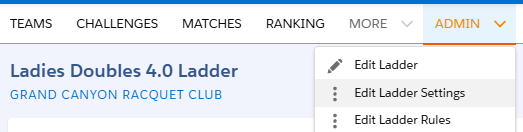
-
Go to the Ladder Fees section and check the first option: Do you require a fee to participate in the ladder ?
-
Enter your ladder fee and any payment instructions.
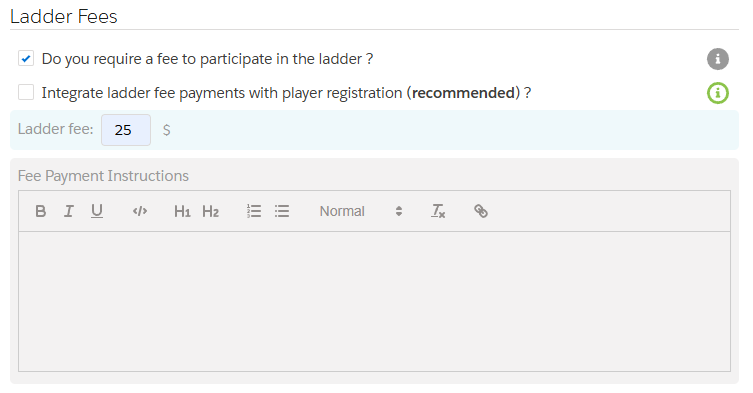
-
Click on the Save Settings button at the bottom of the page. If the settings page closes, re-open it (see Step 1).
-
Integrated Payments: We recommend using this option as it saves you time and the hassle of collecting & tracking payments. It also saves your players time as they pay directly during the registration process all in one step. This avoids players leaving and having to use a third party system for payments, which can be tedious to manage.
-
Check Integrate ladder fee payments with player registration?
-
We partner with Stripe for handling payments.
-
If you have already completed your Stripe account setup, you are good to go. If not click on Complete Account. See Setup Integrated Payments for instructions on how to setup your account.
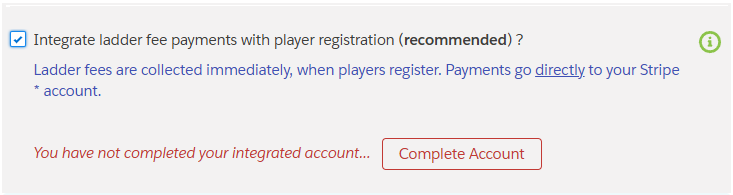
- Click on the Save Settings button at the bottom of the page. You must agree to the terms of Integrated Payments when prompted in order to save.
You have successfully setup your ladder fee and integrated payments. Players will now be prompted for payments from:
- the ladder registration page
- the web app and mobile app in case the player did not pay during registration
Payments from players are not collected unless you Stripe account is setup.